- Loading...
Page History
Author: Jindrich Dinga
1. Introduction
This document is the user experience specification for JavaFX ProgressIndicator control.
2. Overview
Progress indicators are useful for communicating that a job is in-process. This feedback, at minimum, reassures the user that something is happening and, ideally, also lets the user know approximately how long the job will take to complete.
...
Figure 1 Progress Indicator Elements

- Job Title - The Job Title Text is a text string that is positioned above the progress bar. It identifies the overall job, for example "Analyzing Hosts". Use this text string as a title for a single job, which may or may not be composed of one or more steps.
If the job consists of one or more steps, they may be included in the Job Title. In this case, add a sub-title for steps after the primary Job Title text. The sub-title would refresh dynamically as the job progresses through the steps, while the primary title for the Job Title would remain constant. For example: "Analyzing Hosts: Analyzing Hard Drives, "Analyzing Hosts: Analyzing CPUs and etc.". Keep the text string to a minimum so that it does not wrap to more than one line. - Progress Bar - Display the progress bar after the Job Title text, if present. The bar should indicate progress for the overall job and not for each individual step within the job.
- Status Text - Below the progress bar a text string may be presented to describe details about the job. It may be used to indicate the percentage of job completion, with the estimations for time remaining. The text string can update and refresh dynamically.
Determinate Progress Bar
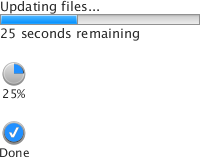
The Determinate Progress Bar provides feedback to the user that a job is in-process and indicates approximately how long it will take to complete. It should be used for a single measurable job composed of one or more steps.
...
Figure 2 Determinate Progress Bar (horizontal indicator, circular indicator, indication of finished job)
Indeterminate Progress Bar
The Indeterminate Progress Bar is used to provide feedback to the user that a job is in-process in the absence of measurable progress information. It should be used when there’s no way to accurately determine how long it will take a job to complete.
...
Figure 3 Indeterminate Progress Bar

Busy Indicator
The Busy Indicator is a simple animated graphic. It is used when no measurable progress can be reported. It is a not a bar, but a circular graphical indicator. Unlike the other progress indicators it can be used in contexts where space is constrained.
Figure 4 Busy Indicator

The animation of the Busy Indicator loops endlessly until the operation finishes or the user acts to stop the operation. The animation reassures users that an otherwise invisible activity is still in progress and the system has not crashed.
The Busy Indicator may be used as an inline ‘placeholder’ when data loading from the server affects the content presentation. For example, if redrawing a chart image causes a delay in repainting the screen, the busy indicator could be presented in the interim.
Error Message
A Dynamic Error Message may be presented when a job fails. If presented, the progress bar is dismissed and an inline error message takes its place. The error message consists of an error icon and associated error text. The intended use for this feature is for situations where only the progress bar itself is being presented to the user, such as in a table display. In other contexts alternate presentations may be preferable.
...
Overview
Content Tools